I. Functional Description
-
Important Notes
-
TikTok Global Multi-Warehouse is a whitelist feature of the platform. To use it, contact your TikTok account manager to apply for whitelist access.
-
Currently, there is no explicit field to determine if a store has been whitelisted. Before using Multi-Warehouse, ensure your store has this feature enabled on TikTok. Otherwise, inventory synchronization may fail.
-
TikTok Multi-Warehouse Documentation: https://bytedance.feishu.cn/docx/FuLsdoB8PoX8QRxbQ4FcaHgOned
-
-
EasyBoss Support
-
EasyBoss now supports authorization for TikTok Multi-Warehouse stores.
-
-
Key Benefits
-
Set inventory for different warehouses directly when listing products.
-
Optimize order fulfillment by selecting the best warehouse for shipping.
-
-
Automatic Inventory Sync
-
Automatically sync Multi-Warehouse inventory to live products.
-
Set sync rules to update live product inventory when changes occur.
-
Workflow: Authorize TikTok Multi-Warehouse store → Sync inventory → Configure auto-sync rules.
-
II. Operational Guide
-
Authorize a TikTok Multi-Warehouse Store
-
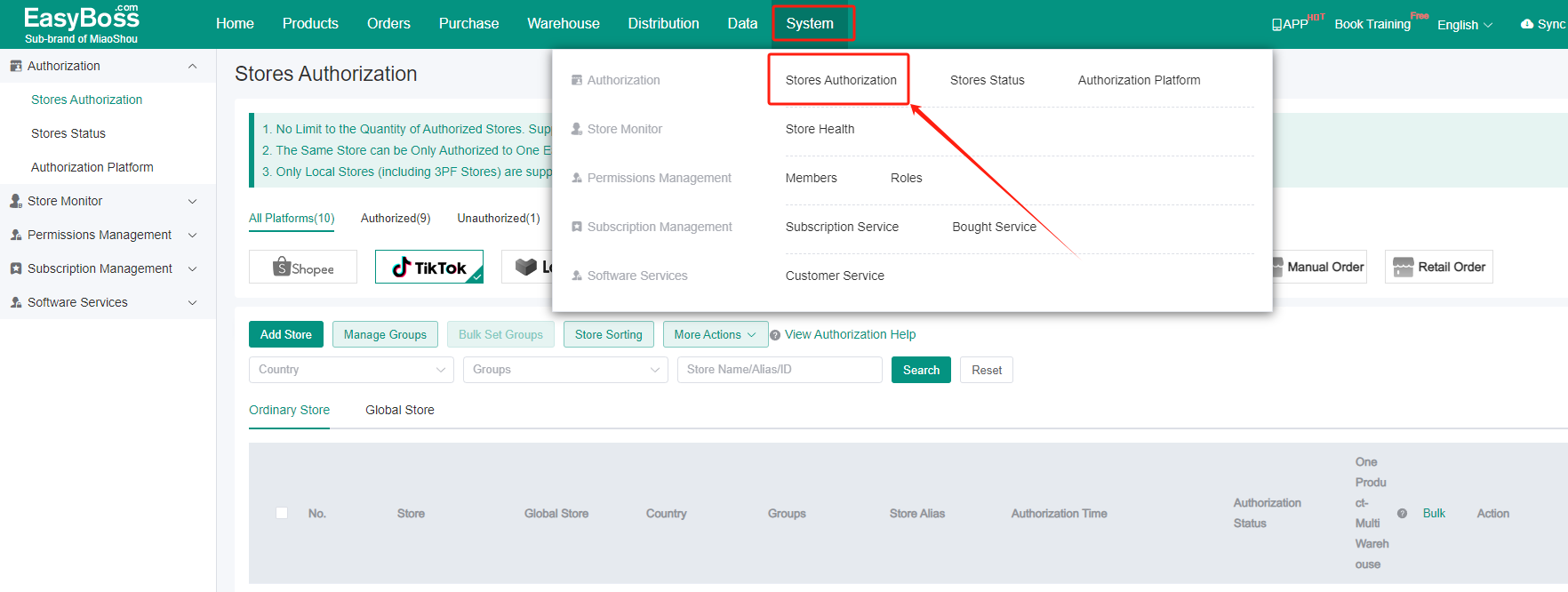
(1) Go to System > Authorized Stores > TikTok > [Add Authorized Store], then authorize a whitelisted Multi-Warehouse store.
-
For TikTok authorization steps, refer to: TikTok Shop Local Store Authorization Guide.
-
Note: If the store lacks Multi-Warehouse access or whitelist eligibility, it will sync inventory as a regular store.
-
-
-
-
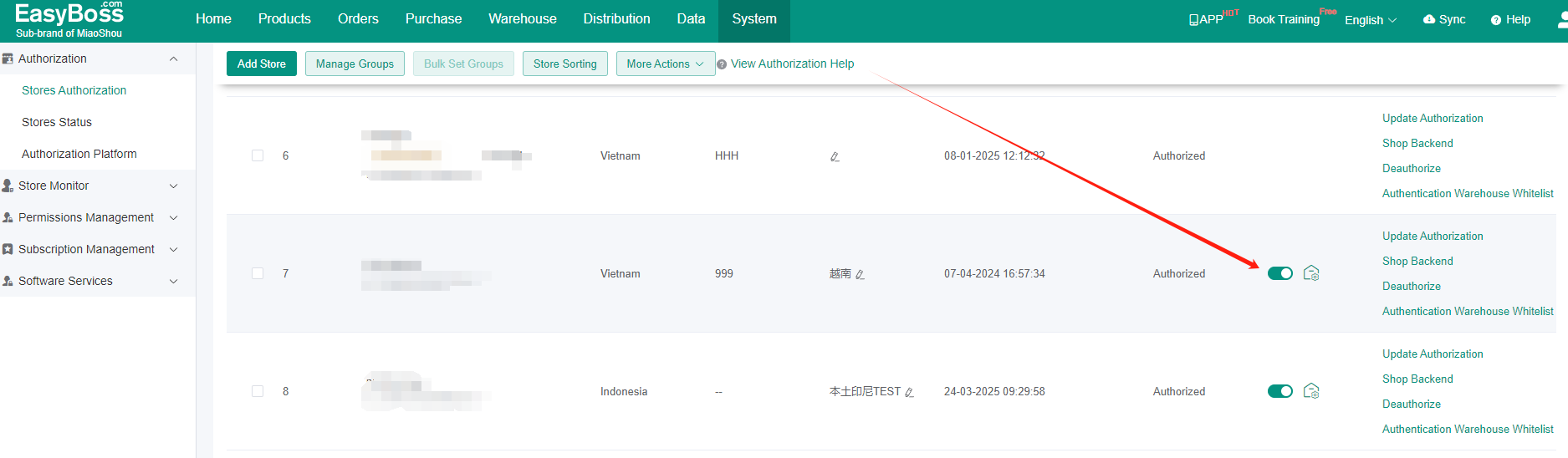
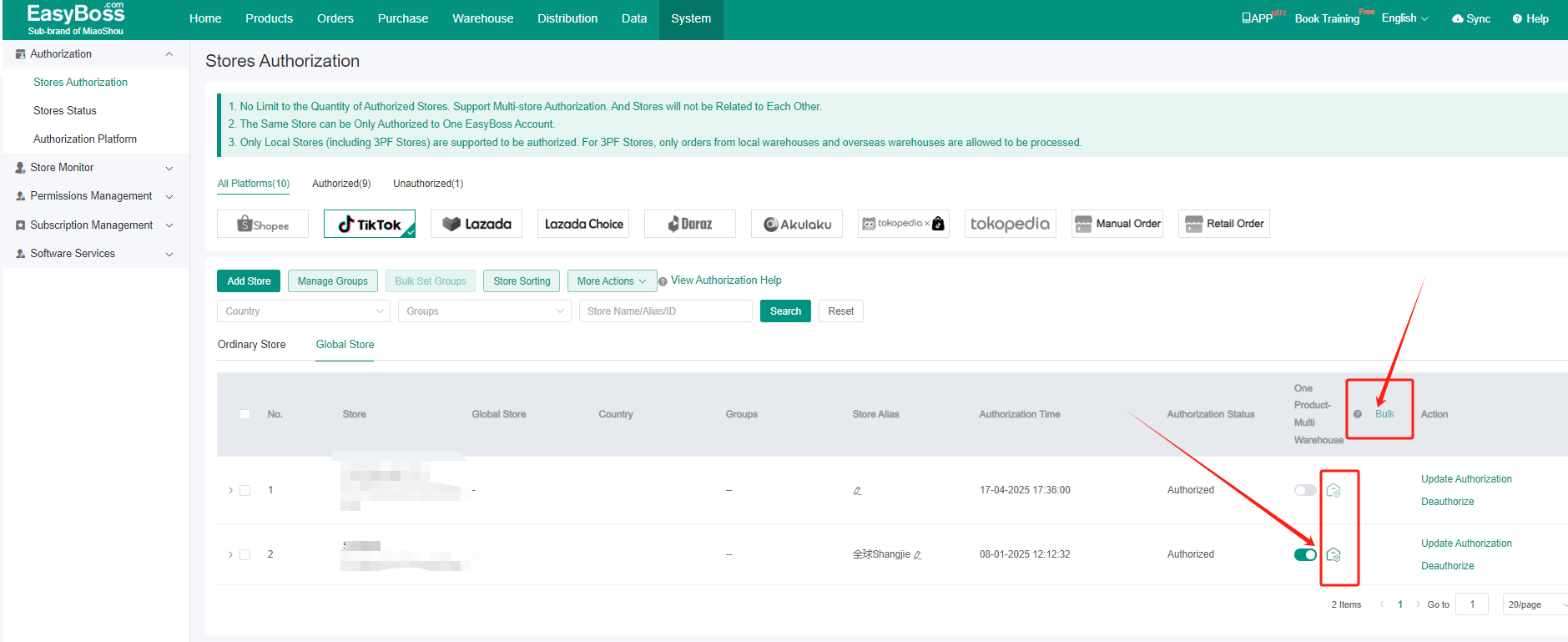
(2) Enable Multi-Warehouse by toggling the button on the right side of the store list.
-
Manually enable this during initial authorization or after whitelisting. Subsequent statuses will sync automatically.
-
-
-
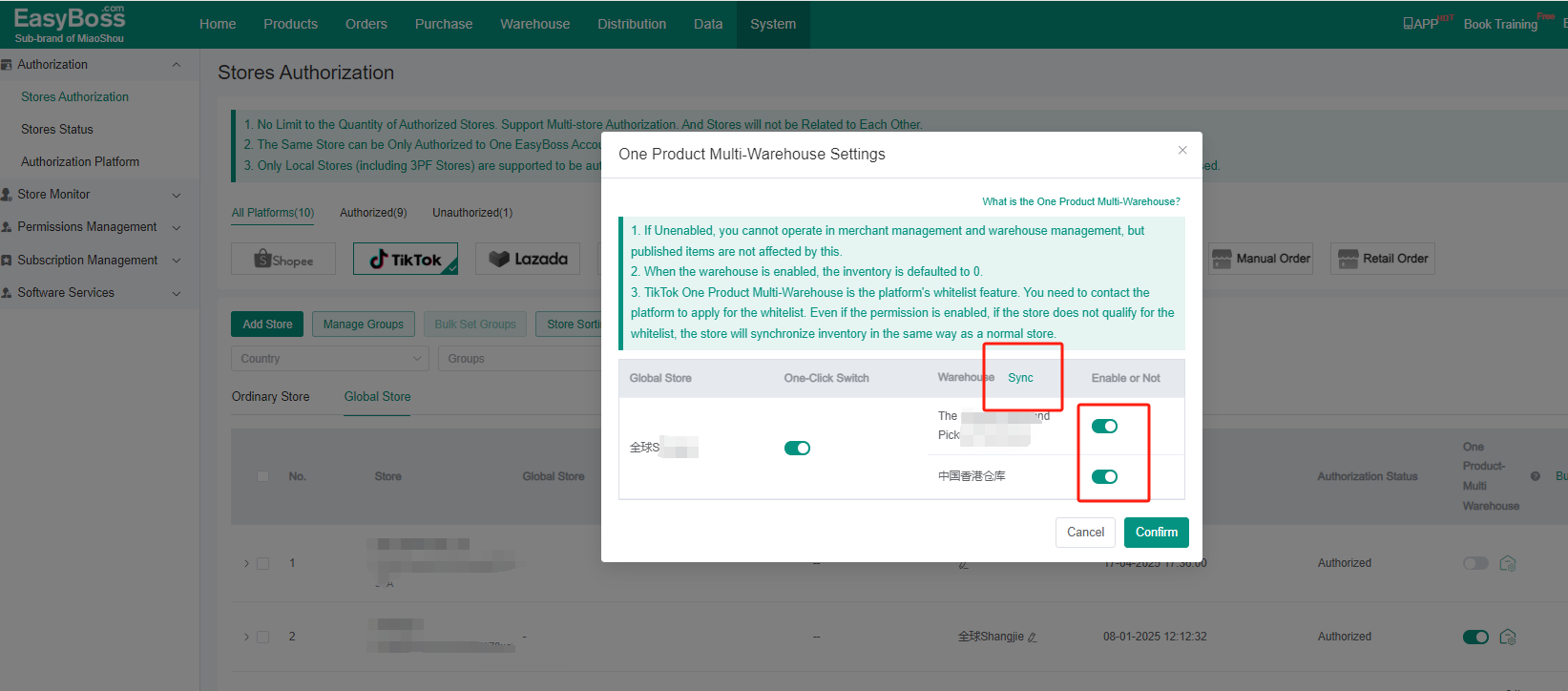
(3) Click the warehouse icon in the Multi-Warehouse section to manage active warehouses.
-
Use [Batch] to enable/disable warehouses for multiple stores at once.
-
-
-
(4) Disabled warehouses cannot be used in product/warehouse management, but existing listings remain unaffected. Enabled warehouses default to 0 inventory.
-
-
Sync and Set Warehouse Inventory
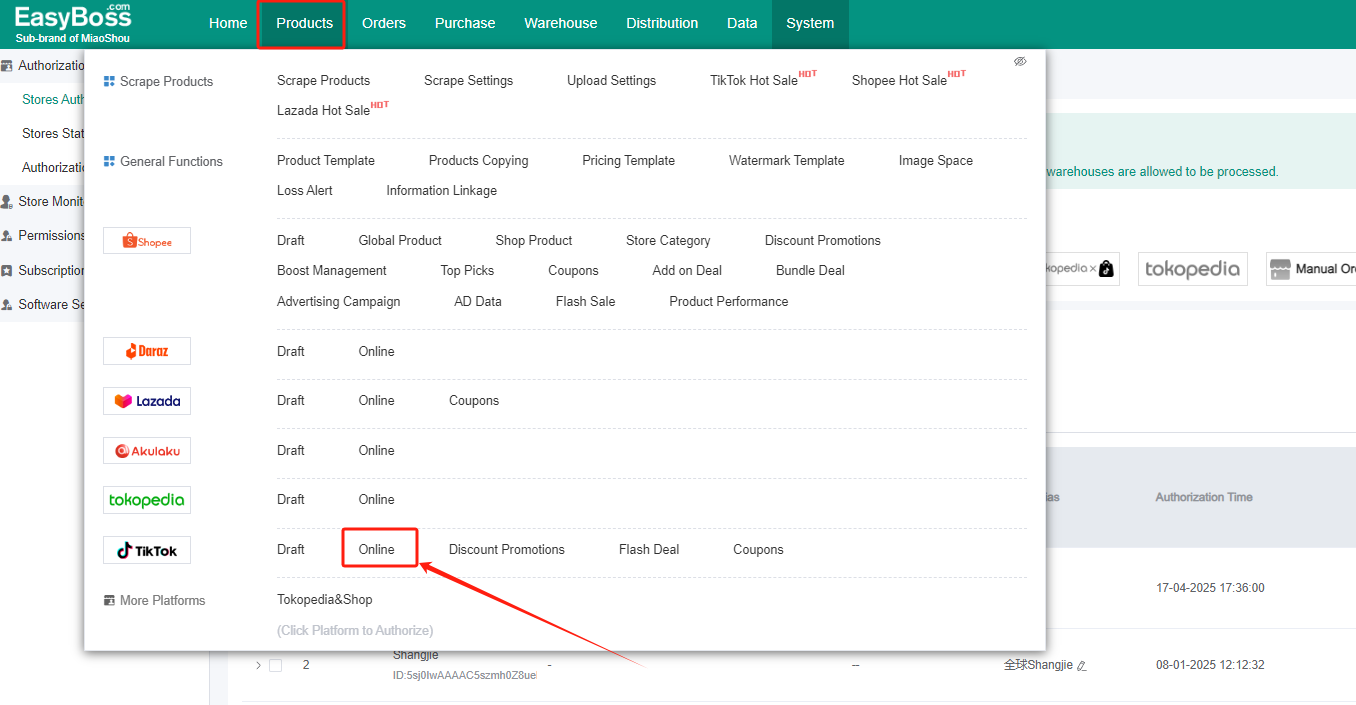
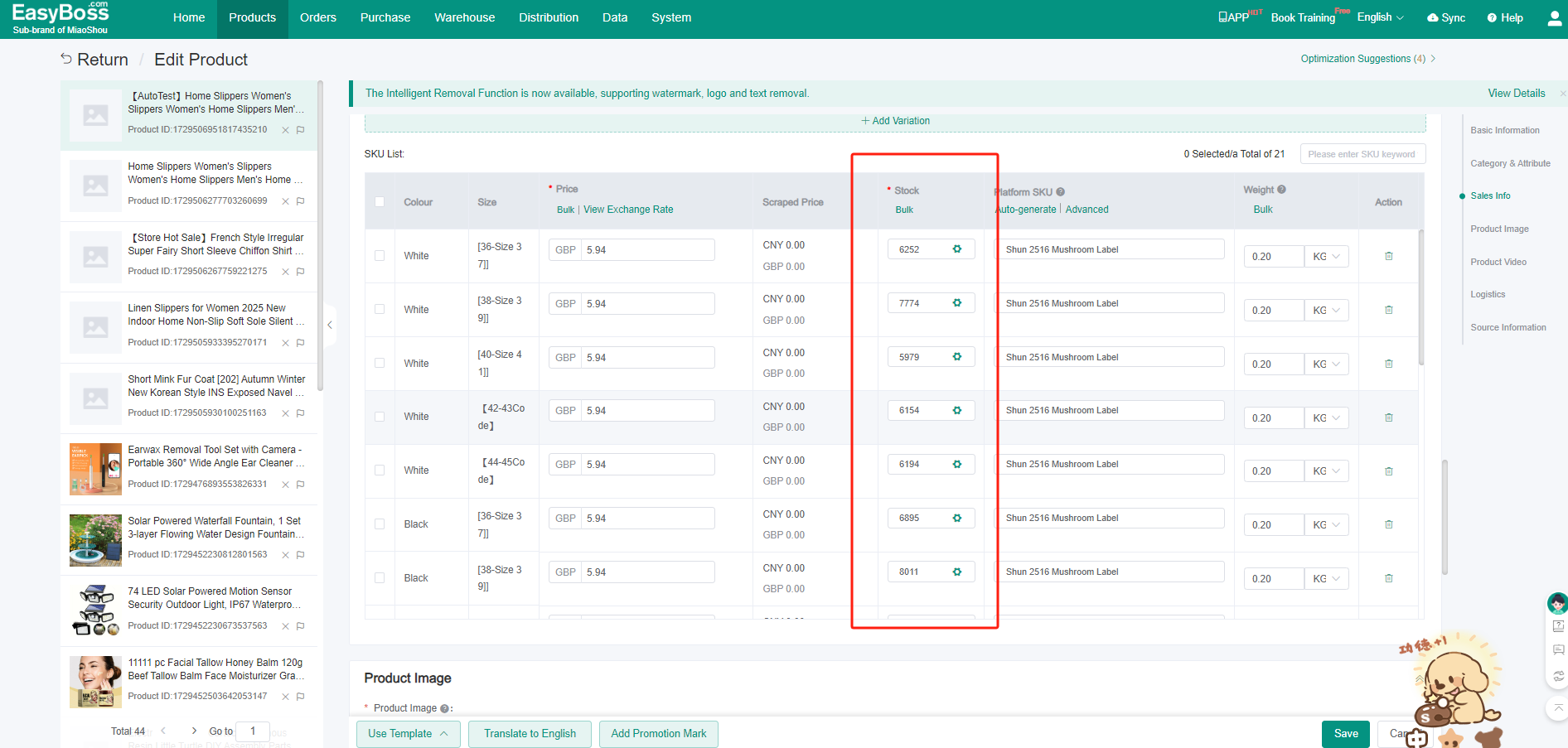
- (1) Navigate to Products >Online > Edit Product.
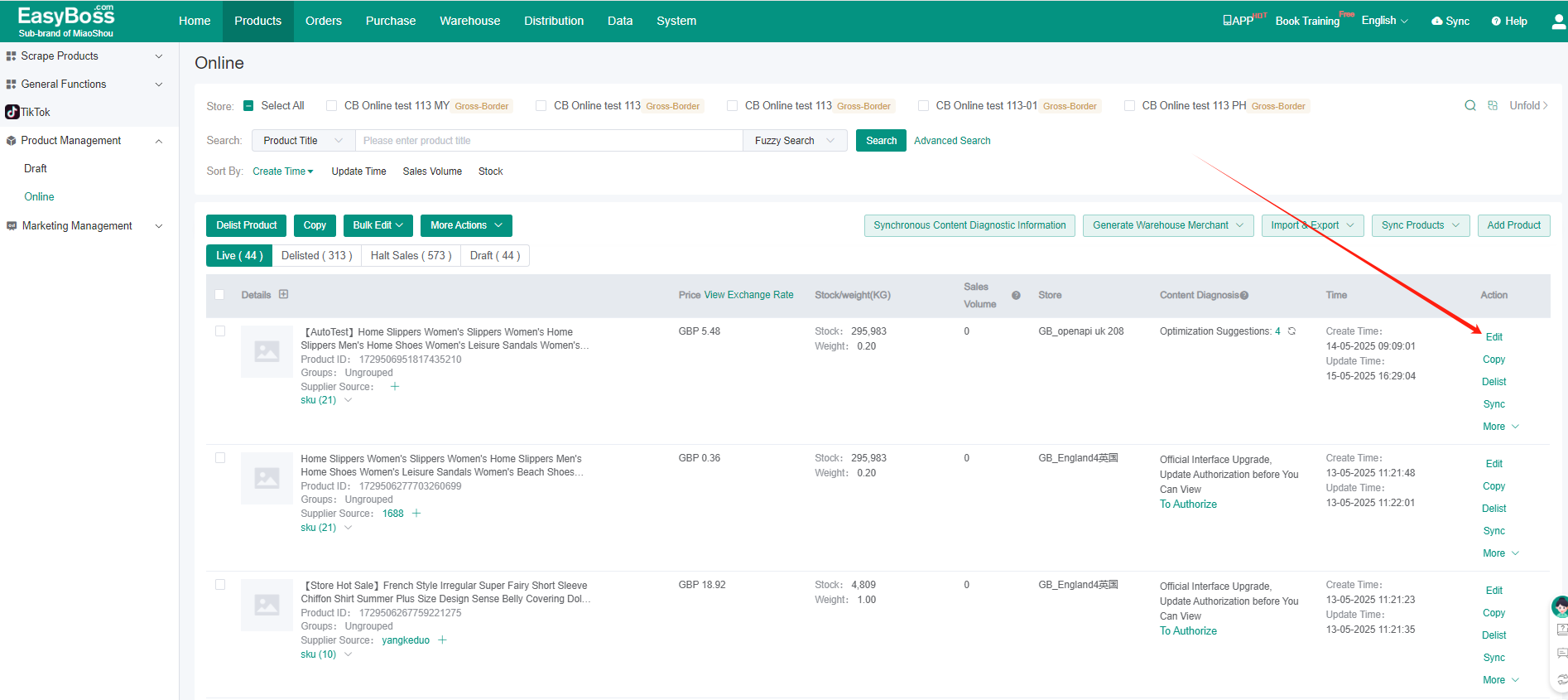
- (2) Scroll to the SKU list. For each SKU, click the gear icon next to the inventory field.
-
-
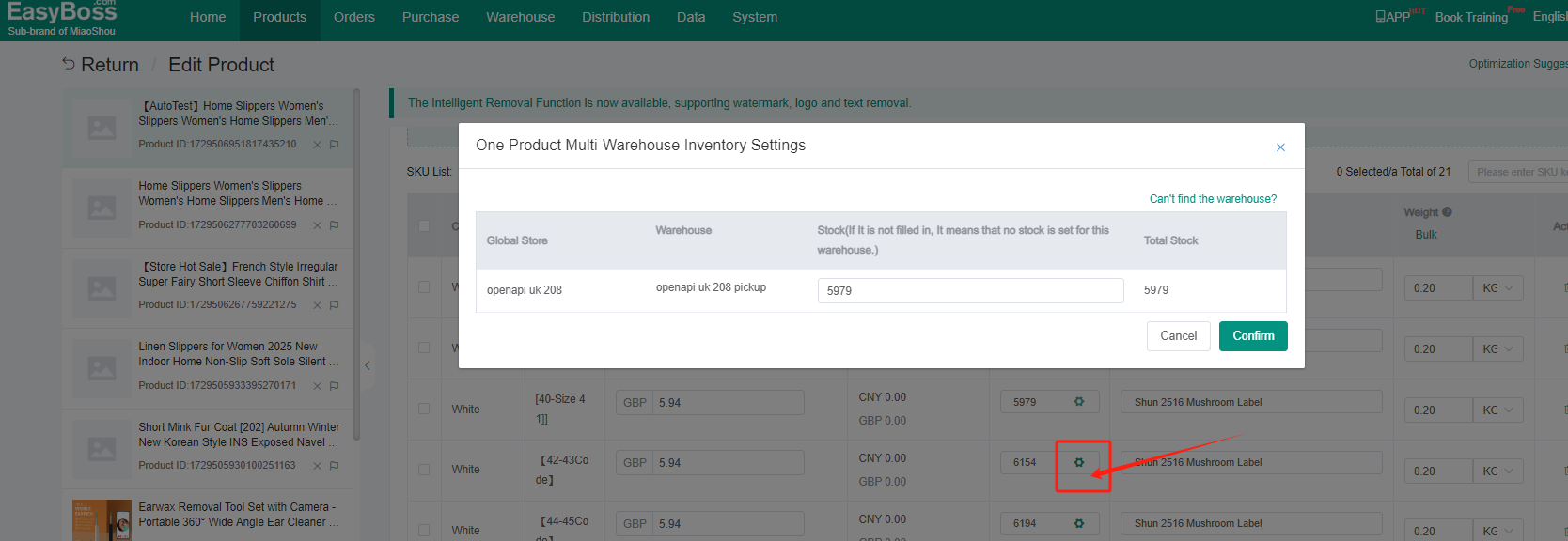
(3) In the pop-up, set inventory quantities for each warehouse.
-
-
Sync Multi-Warehouse Inventory to Stores
-
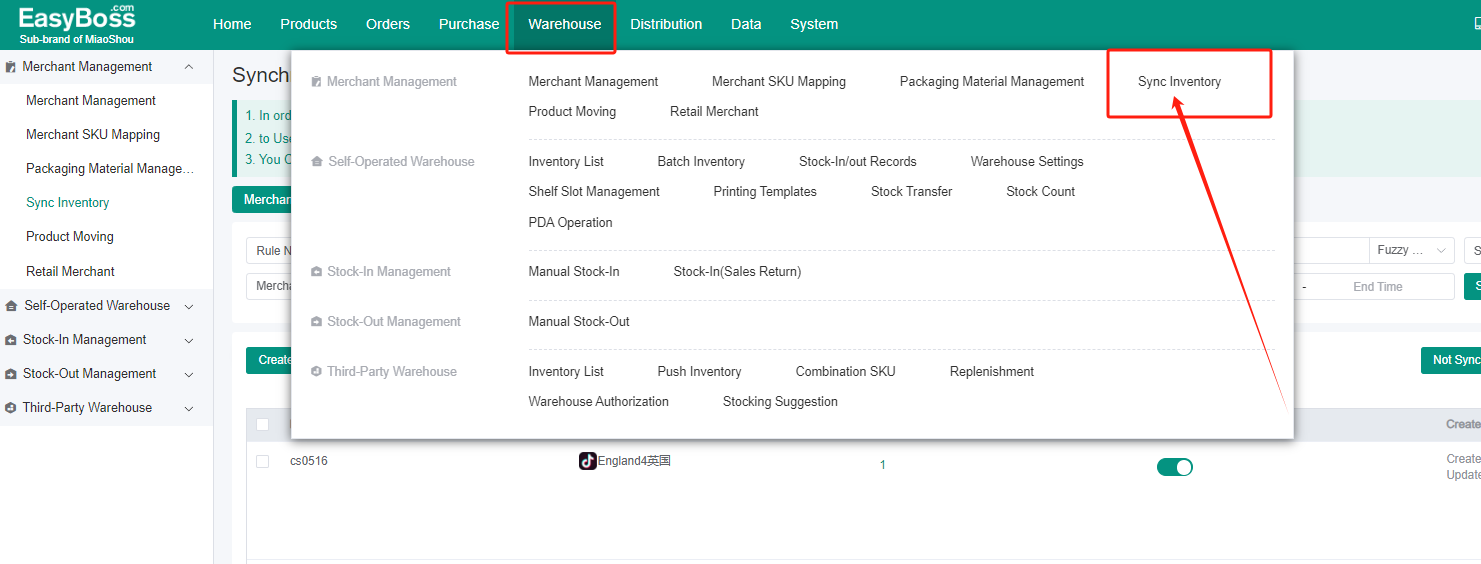
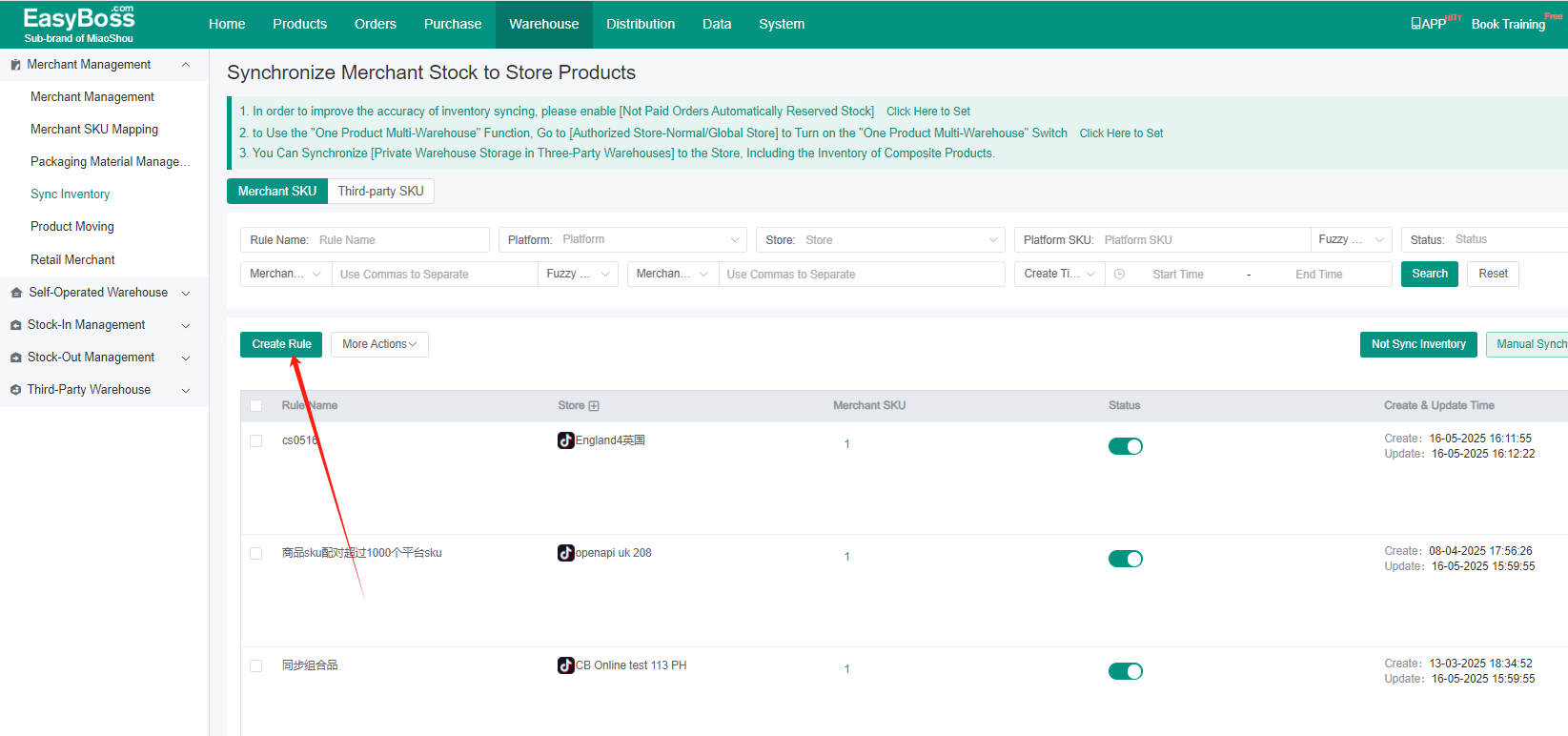
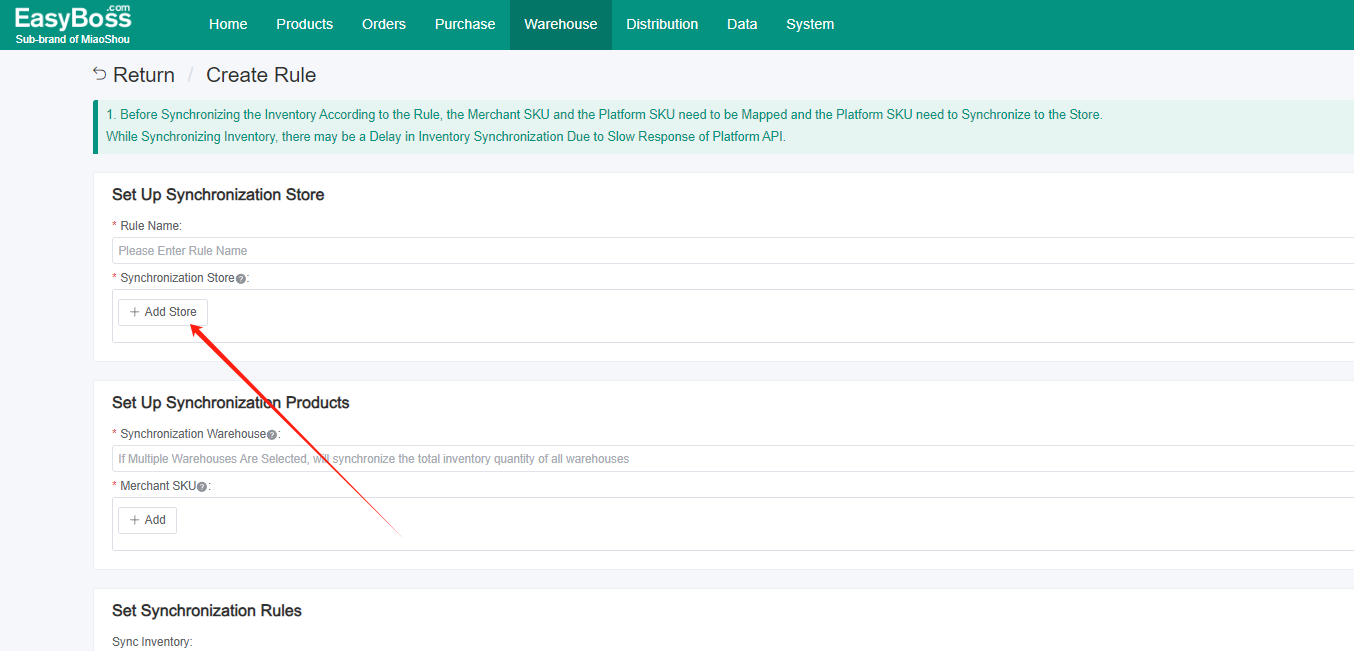
(1) Go to Warehouse > Sync Inventory > Create Rule.
-
-
(2) Select stores to sync inventory for.
-
-
(3) Configure Sync Rules:
-
① Set sync ratios (e.g., 50%) to distribute inventory across self-owned/3PL warehouses.
-
② Warehouses disabled for a product will exclude its inventory from syncing.
-
Example:
-
Store 1 has Warehouses 1/2/3 with a 50% sync ratio.
-
Product A (100 units) is only enabled in Warehouse 1. With a 90% execution ratio:
-
Synced Inventory = 100 * 90% * 50% = 45 units (Warehouse 1 only).
-
-
-
-
- ③ Multi-Warehouse stores display a warehouse icon. If missing, re-authorize the store.、
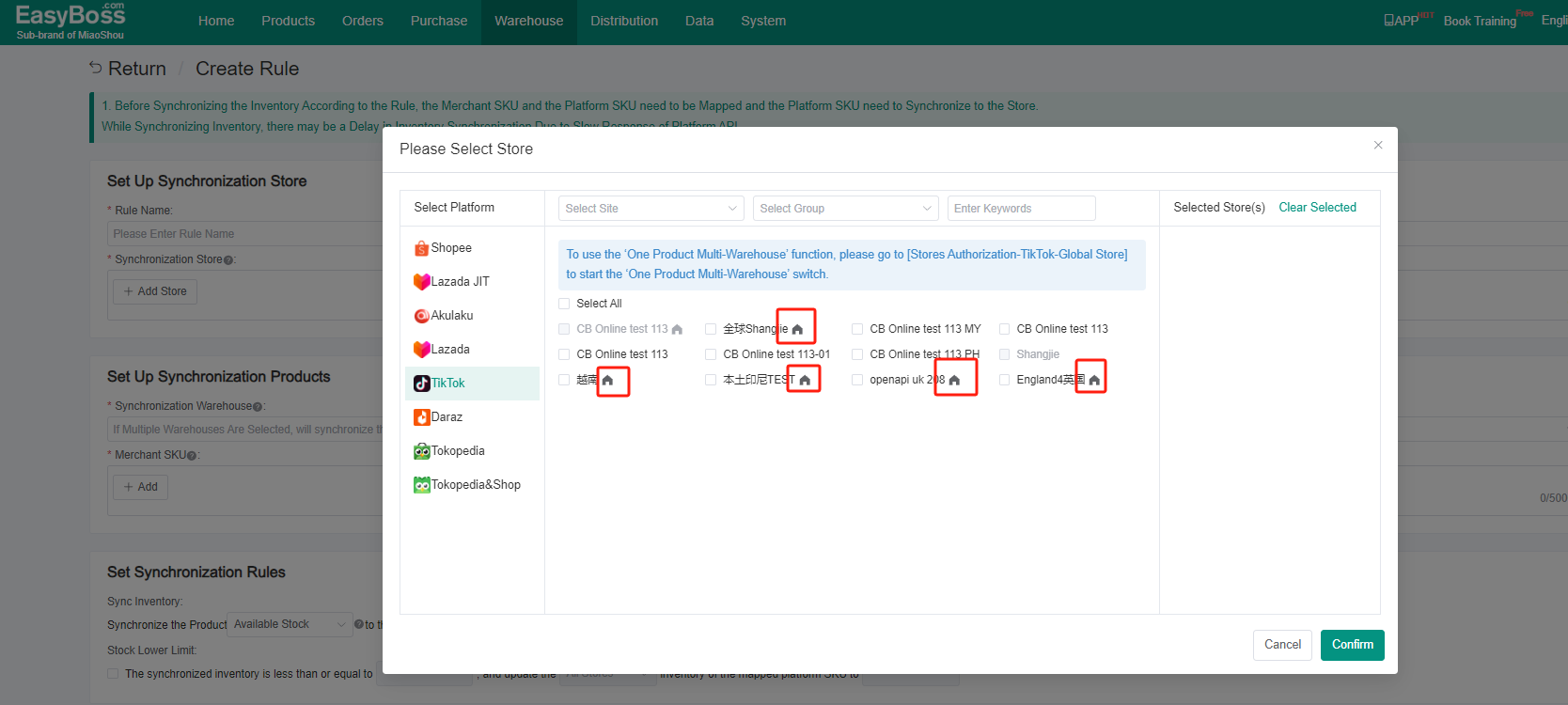
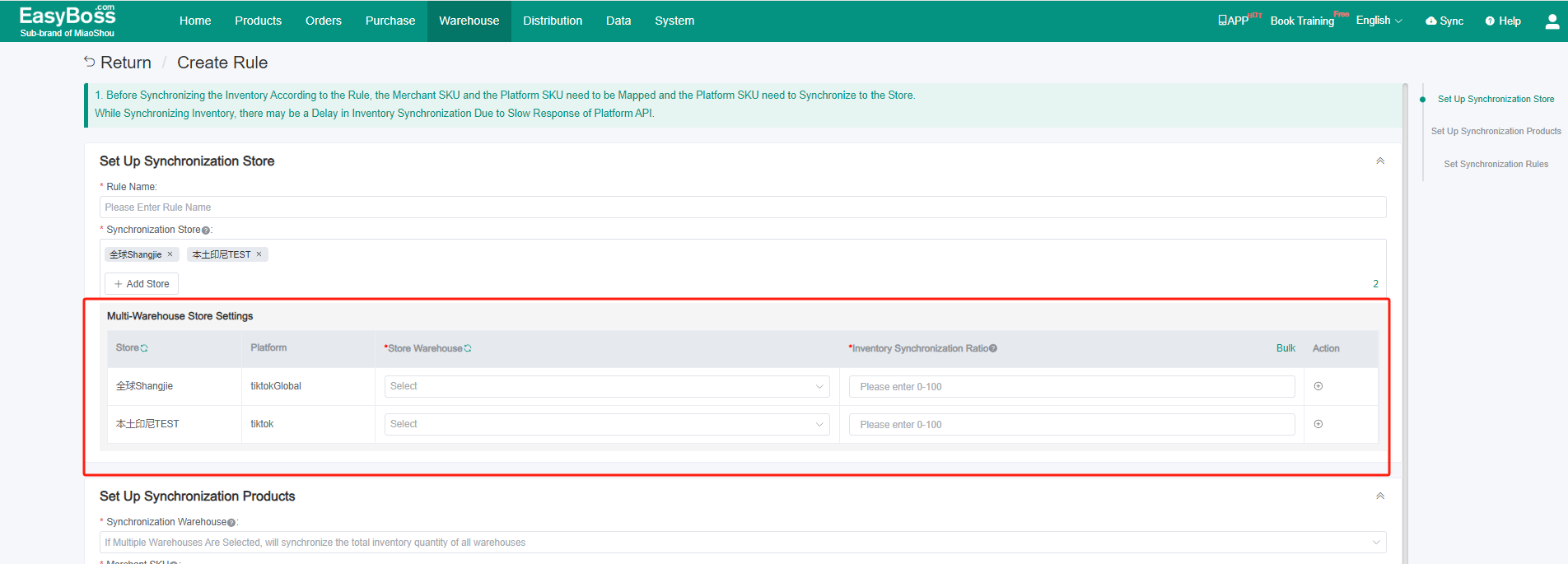
(4) For detailed steps, see:
-
-
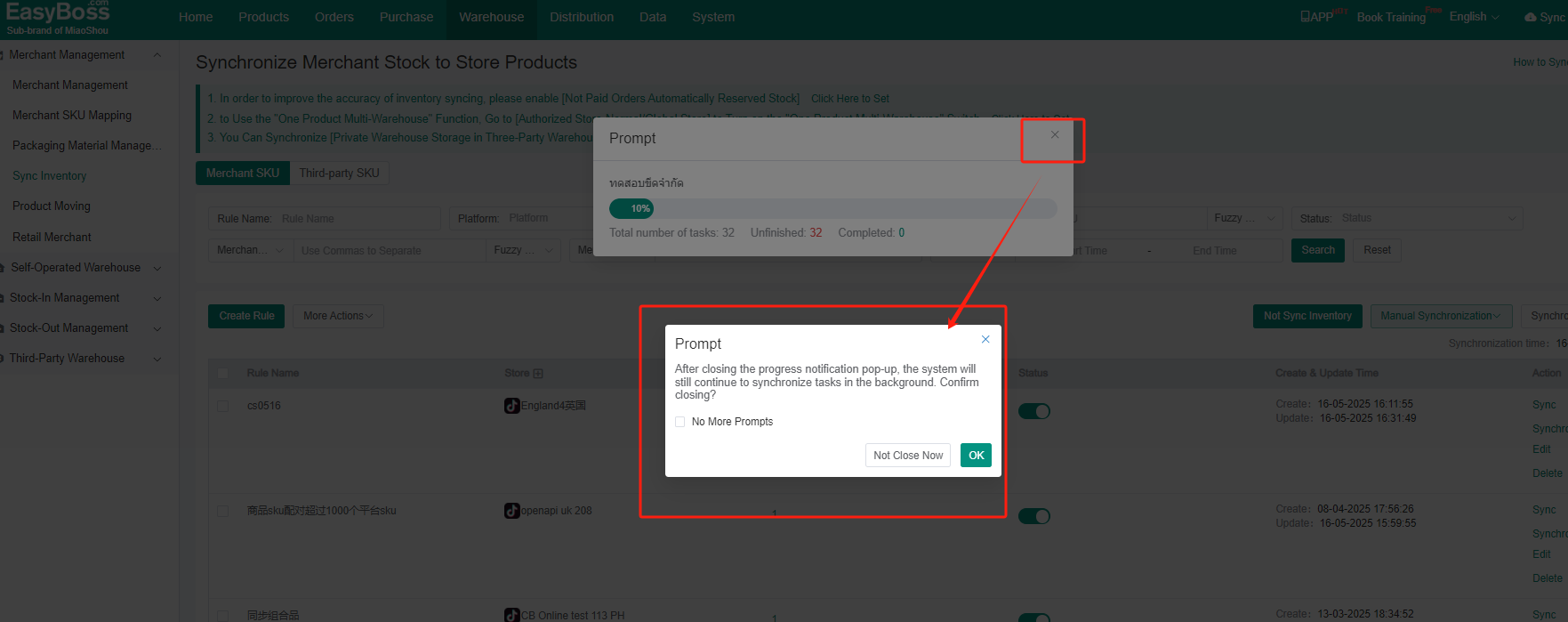
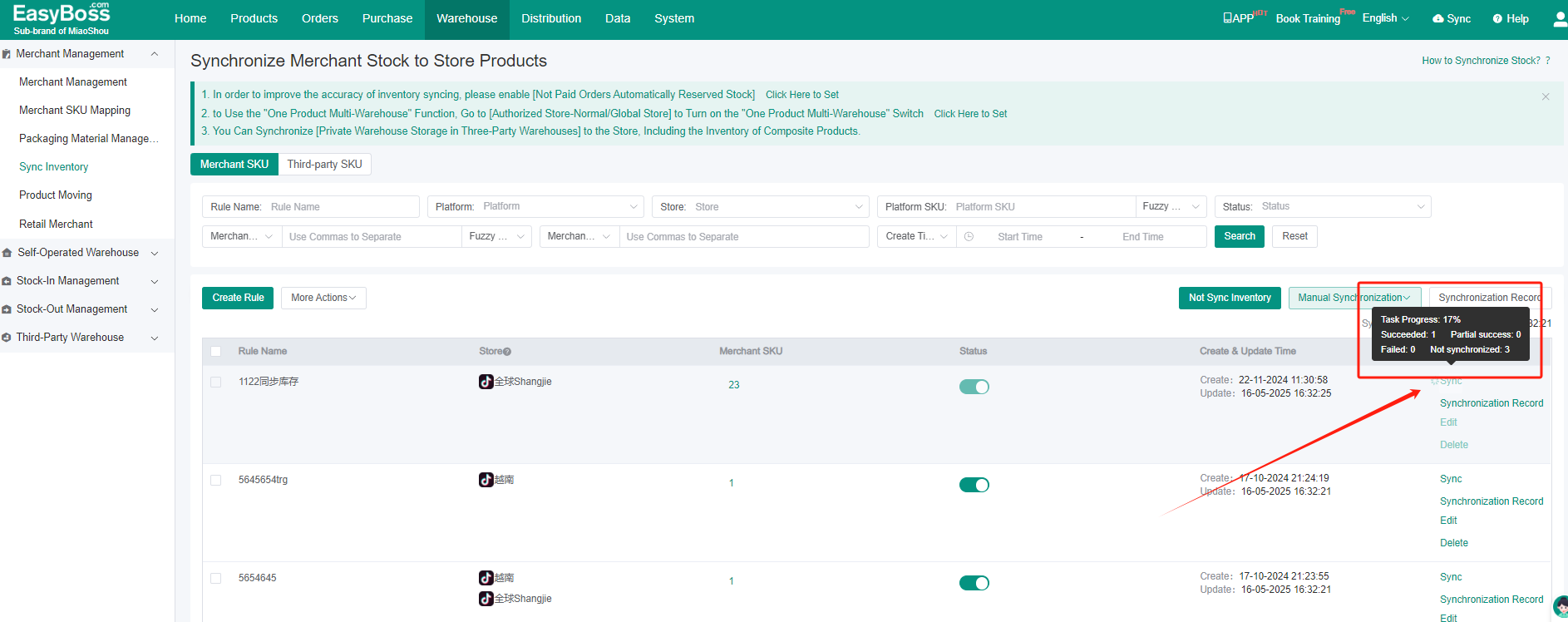
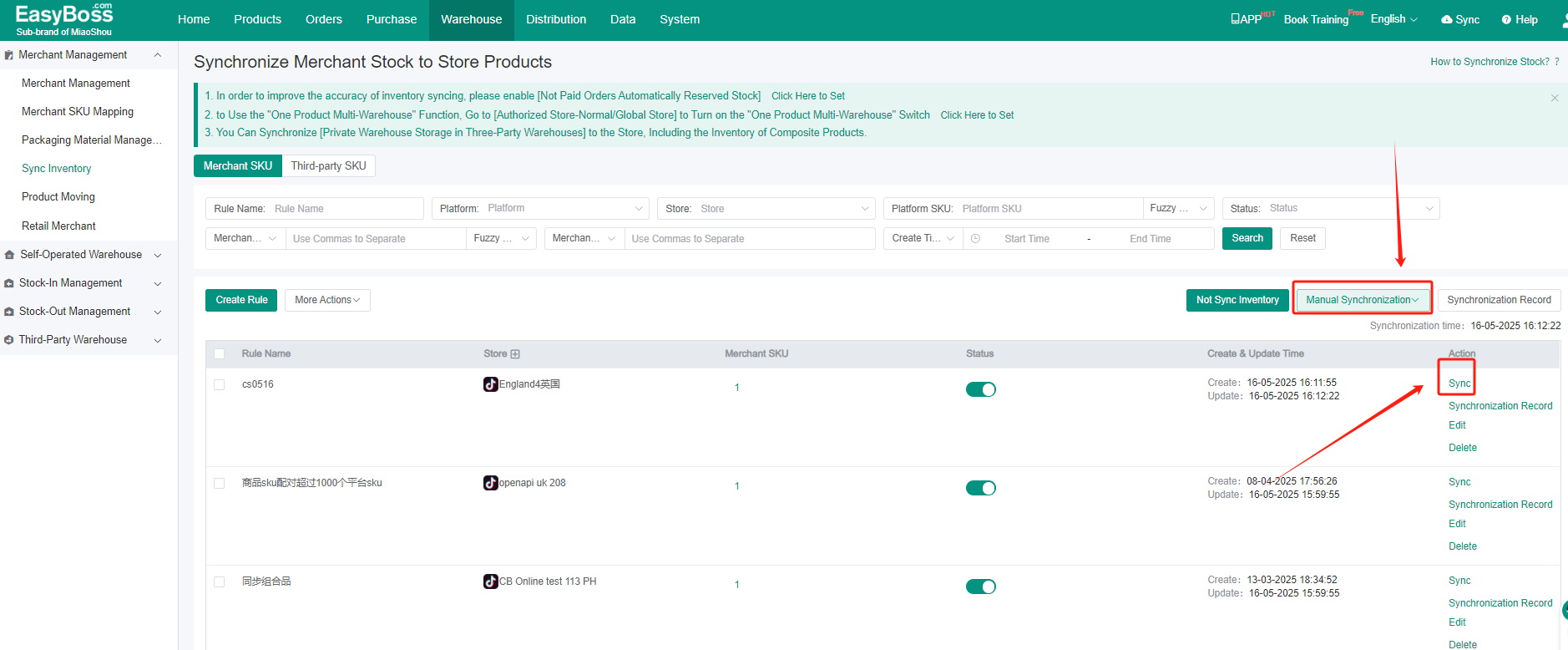
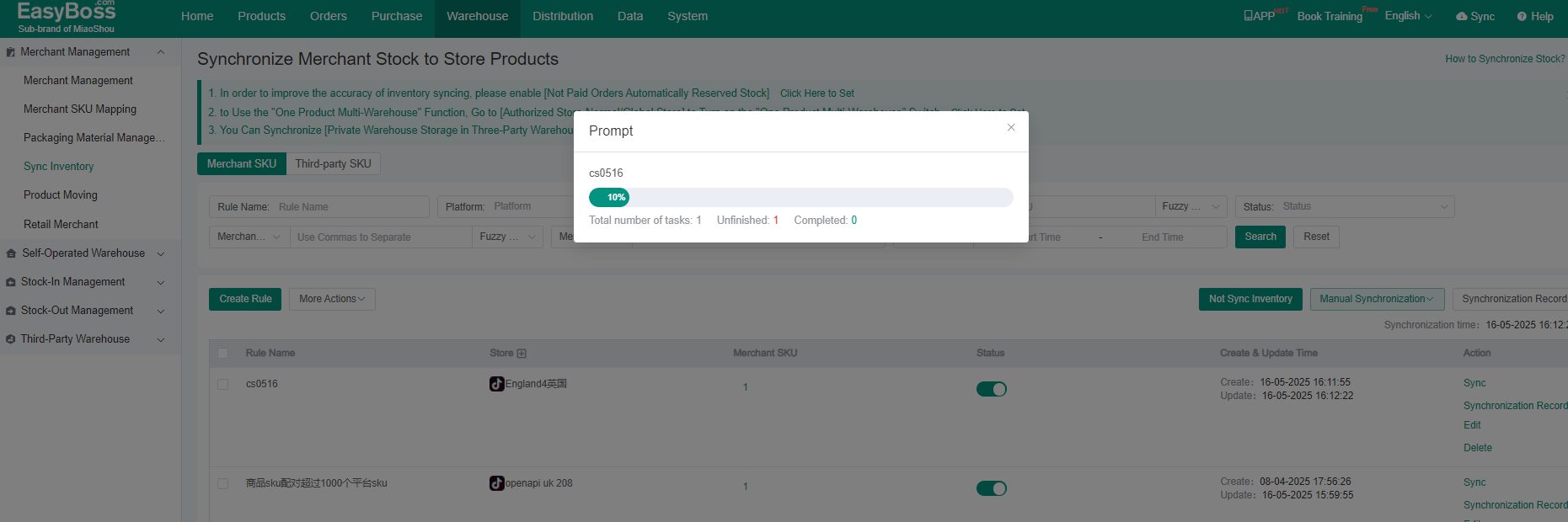
(5) After creating rules, the system auto-syncs inventory upon changes. Click Manual Sync for immediate updates.
-
- Progress can be tracked under [Sync Status].
Note: Ensure rules are saved before enabling Multi-Warehouse for existing configurations to apply the latest settings.